2.5 KiB
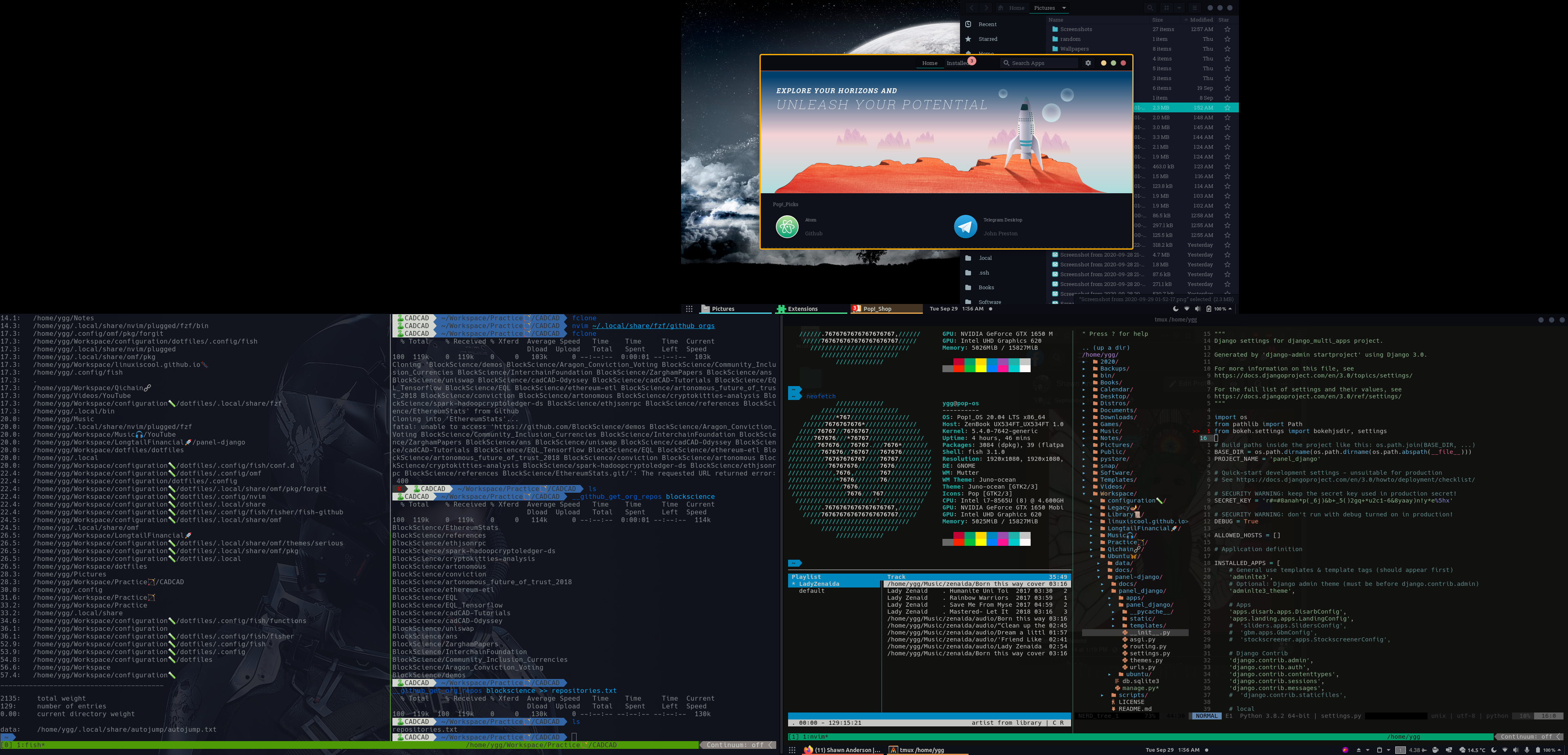
Pop-os - Gnome - Tmux - Fish - Vim - FZF - Serious Configuration - Shawn Anderson
These are the dotfiles that I hack on. Can easily be installed to your ~/.config/ by using the gnu stow utility.
To install:
-
Requirements
sudo apt install stow xcape fish tmux neovim
Change default shell to fish
chsh -swhich fishInstall nvm
https://github.com/nvm-sh/nvmLogout and Login
-
Clone the repo
git clone git@github.com:LinuxIsCool/configuration.git
-
Symlink into ~/.config using stow
cd configuration
sh stowInstall virtualfish
pip3 install virtualfish
vf installInstall Tmux plugin manager
git clone https://github.com/tmux-plugins/tpm ~/.config/tmux/plugins/tpm
tmux -> prefix + IInstall Nerd Hack Regular: https://github.com/ryanoasis/nerd-fonts/blob/master/patched-fonts/Hack/Regular/complete/Hack%20Regular%20Nerd%20Font%20Complete.ttf
Terminal -> Preferences -> Text -> Font -> Hack Nerd Regular
Popos-Gnome
In addition to the script-based configuration, I'll do my best to track and document my debian-gnome-popos settings, to make them as reproducable as possible.
Aesthetic-wise, I'm currently using the Juno-Ocean Gnome theme, as per recommended by @mattcoding4days, and my vim theme is quantum, as per Matt's recommendation as well.
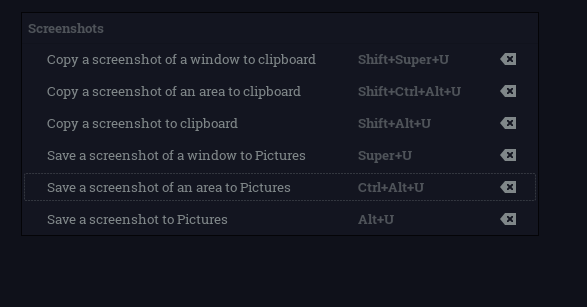
Keyboard-driven screenshoting
I used the following mnemonics for shortcuts across my system. I use alt-u as the base for screenshots because function-u is the default print-screen on my keyboard.
| Key | Shift | Ctrl | Super | Alt |
|---|---|---|---|---|
| Mnemonic | Move | Select Area | Window | Screen |
| -------------------------------- | ------- | ------------- | -------- | -------- |
| Screenshot Area to Clipboard | * | * | ||
| Screenshot Window to Clipboard | * | * | ||
| Screenshot Screen to Clipboard | * | * | ||
| Screenshot Area to Pictures | * | |||
| Screenshot Window to Pictures | * | |||
| Screenshot Screen to Pictures | * |